1.3 Local workflow
Another way to create and maintain HTML course materials is to convert your notes locally on your machine. To do this, you will need to either install Docker, or directly install BookML and its dependencies. We give detailed instructions for the Docker workflow, as this is generally easier to set up and use.
1.3.1 Using Docker
To run BookML, we can use a Docker container — a lightweight, portable unit that packages an application and all its dependencies, ensuring that it runs consistently across different environments. This removes the need to download software and maintain dependencies on your computer.
Importantly for us: there is a Docker image available for BookML, which is ready-to-use and contains everything we need.
To use it, we can use Docker Desktop, which is available for Windows and Mac, or Docker Engine, which is available for Linux. An open-source alternative (compatible with Docker) is Podman, which is available for Windows, Mac, and Linux. In any case, the key steps are:
-
1.
Setup (just once): install Docker or Podman, and download the Docker image.
-
2.
Convert: run a single command in the folder with your
.texfiles.
Both Docker and Podman allow us to use either the command line or a graphical interface. If you don’t know which one to choose, just pick one and try it!
Notes:
-
•
If you have a managed Windows machine, Docker Desktop is available from the software centre. This is a slightly complicated process, see Appendix LABEL:app:a for instructions. It may be simpler to request ‘Make Me Admin’ and install from the internet. If you wish to use Podman, you will need to request ‘Make Me Admin’. Guidance on ‘Make Me Admin’.
-
•
The Learning Technology team will be able to assist you with installing Docker or Podman — email
lt@maths.ed.ac.ukto ask for help.
Setup (first-time only)
Option 1 - to set up Docker:
-
1.
-
•
Windows/MacOS/Linux: Download Docker Desktop from this link or the Software Centre, and install as instructed by the interface. Launch Docker Desktop. There are versions of the download file of Docker Desktop which cause an error. Ensure you are downloading the version that is listed in the documentation.
-
•
Alternatively for Linux only: Download and install Docker Engine, following the instructions for your distribution.
-
•
-
2.
Launch a terminal (use
cmd.exeon Windows), and run the command:docker pull ghcr.io/vlmantova/bookml:latest
This will download the Docker image to your machine.
Option 2 - to set up Podman:
Note that this requires “Make Me Admin” on Windows managed machines.
-
1.
Download Podman Desktop from here and install as instructed by the interface.
-
2.
Podman desktop will open, and you will be asked to setup. Click the ‘Setup’ button and follow through the instructions that follow. When prompted, select ‘Yes’, and then ‘Install’.
-
3.
Once fully installed, we can download the image. To do this, open the ‘Images’ tab (the 4th option on the left-hand side of the screen) and click
Pullon the top right of the screen, then enterghcr.io/vlmantova/bookml:latestand click “Pull image”.
Conversion
Before you start, for better results, add \usepackage{bookml/bookml} to the preamble of your .tex file(s) (after the \ documentclass{...} command). This is not necessary if you are using the template provided here by the School of Mathematics (download and extract “Source code (zip)”).
Note that if you use Overleaf, the bookml/bookml package will cause an error, unless you also add the bookml folder to your project (found in release.zip on the BookML repository).
Option (a) - using the command line:
-
1.
Start a terminal in the directory containing your
.texfile(s). (Usecmd.exein Windows.) -
2.
Run the command:
{software} run -t -v .:/source ghcr.io/vlmantova/bookml:latest
(replace{software}withdockerorpodman).
Option (b) - using the graphical interface:
-
1.
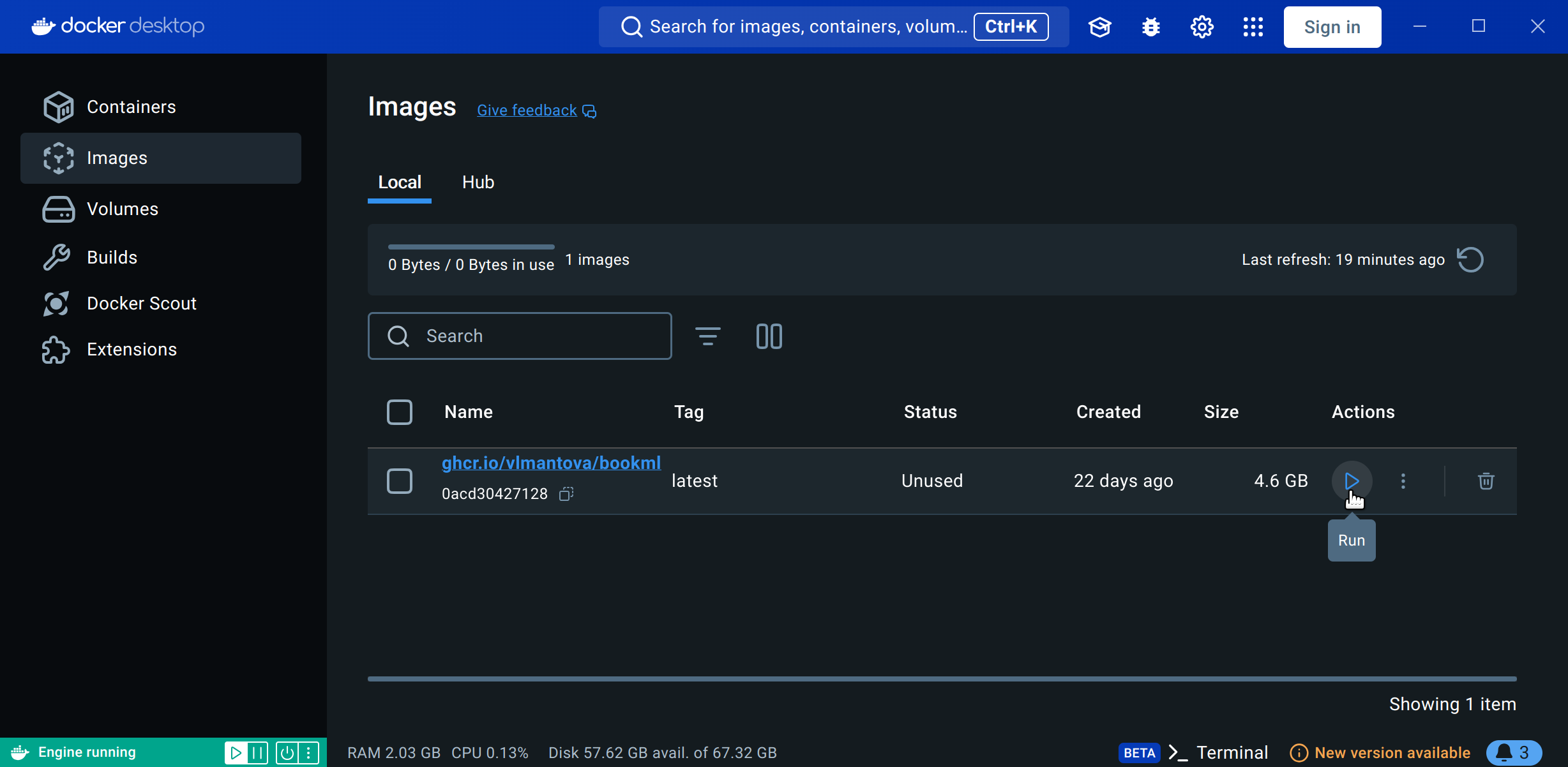
In Docker/Podman Desktop, click on the ‘Images’ tab, and you will see the image you have just downloaded. Click the ‘Play’ button (Figure 1.9).
-
2.
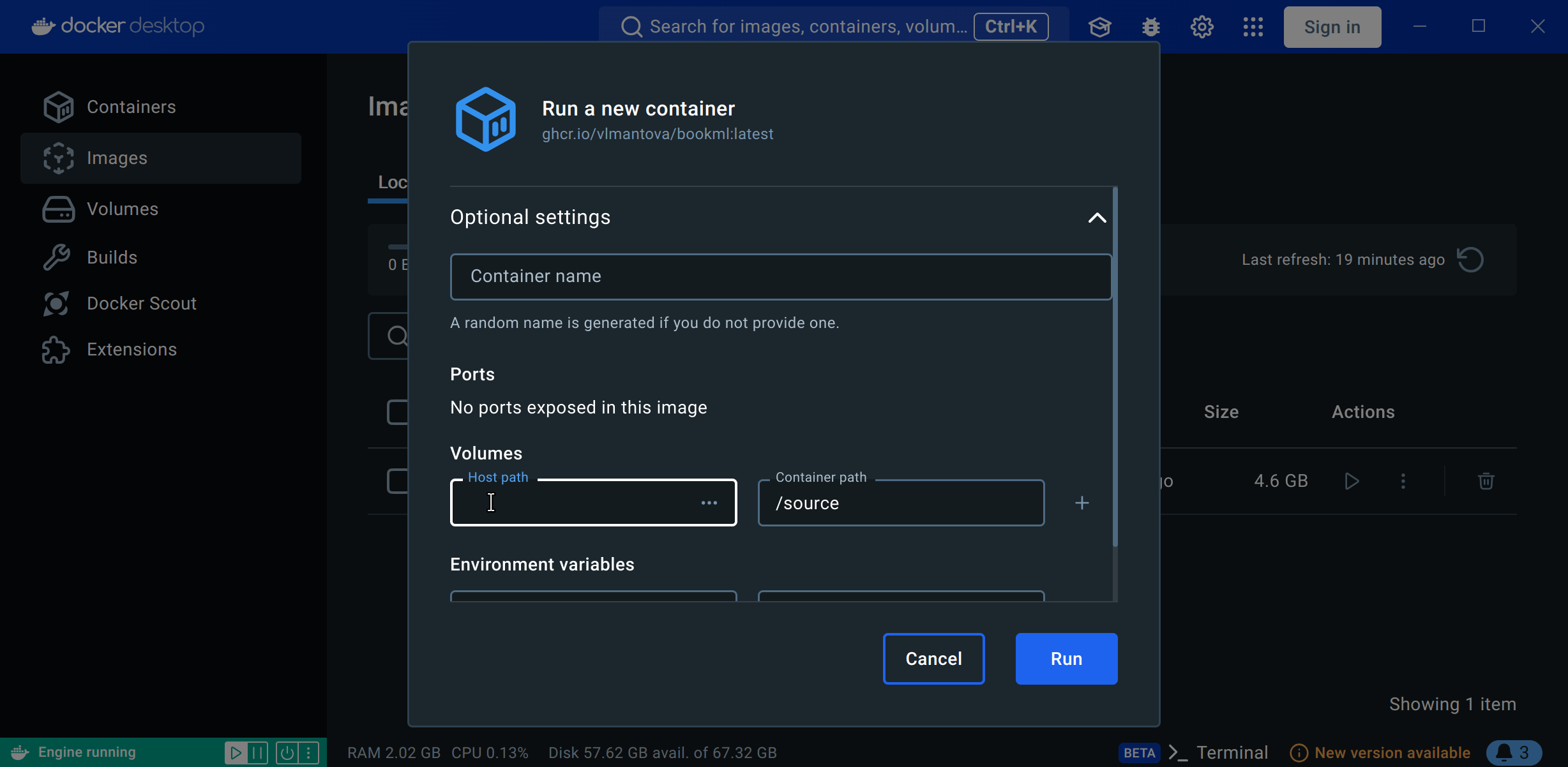
Under “Volumes”, specify the “Host path” to be the path to your folder, and the “Container path” to be
/source. (In Docker Desktop, this is under “Optional settings” – see Figure 1.10.) -
3.
Click ‘Run’ (Docker) or ‘Start Container’ (Podman) to produce the PDF and HTML outputs.
1.3.2 Installing BookML and dependencies manually
If you prefer to install the necessary packages and dependencies to your machine instead of using Docker, instructions are given in the BookML documentation for the installation and the conversion to HTML.
1.3.3 Sharing with students
Running BookML will produce PDF files (with pdflatex), as well as .zip files containing the HTML versions of your .tex files, which can be uploaded directly to Learn. The output (both PDF and HTML) will be found in the same folder as your .tex files.
Upload SCORM.yourfile.zip directly to Learn as described in 1.2.4.
The yourfile.zip (without the SCORM) files contain a standalone HTML site, which you may also wish to publish yourself if you are comfortable doing so (e.g. on your SoM user domain). See 1.2.5 for related copyright information. However, only the SCORM versions are fully compatible with Learn, so please use these if you plan to upload your materials to Learn.
1.3.4 Learning Technology Mailbox
If you would rather, you can also email lt@maths.ed.ac.uk with a .zip of the folder containing all the source files for your course materials (everything needed for your .tex files to compile normally). The Learning Technology team will perform the conversion, and email you back with a .zip file containing the HTML version of your course materials; optionally, they can also upload it to your Learn page. If they spot anything which didn’t convert well, they will let you know.